


Control Widget: Theme & Panels
4.440.00 Reviews
App Specs
- Version
- 1.3.1
- Updated On
- License
- Free
- Downloads
- 10,000,000+
- Developer
- New Widget Co.
- Categories
- Personalization
- Platform
- Android
Screenshots
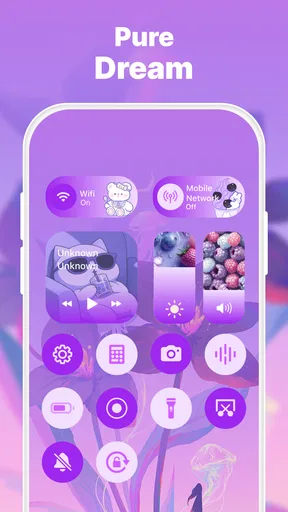
 Analysis by AppCompare
I usually start thinking about a control-panel app when my phone feels cluttered rather than when I’m looking for another way to decorate it. The useful question is whether a new layout can make everyday actions easier to reach without turning the home screen into a project of its own. Control Widget: Theme & Panels is aimed at that balance: it is a free personalization app from WECHOICE MOBILE, built around themed panels and widgets rather than a wholesale change to how the phone works.
Begin with the problem you want to solve
Before choosing a look, I’d decide what currently takes too many taps. Perhaps you keep opening the same few apps, want a clearer place for useful shortcuts, or simply find the default screen visually messy. Starting with one of those annoyances makes the choices in this app more purposeful. If you begin by trying to redesign everything at once, it is easy to spend time comparing styles without making the phone more convenient.
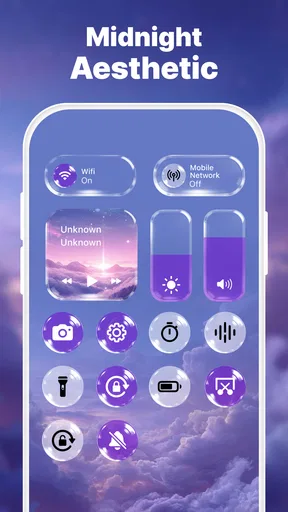
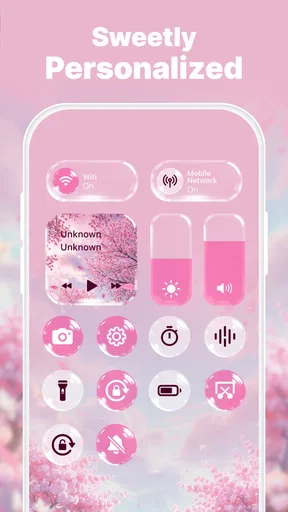
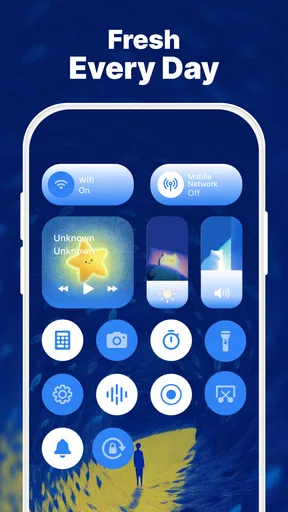
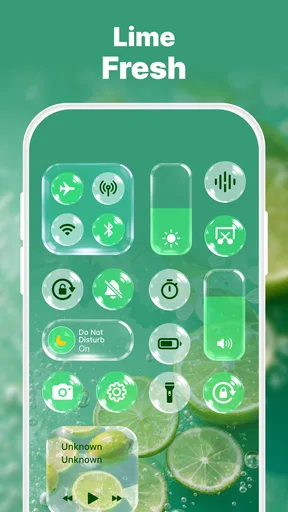
The app’s focus is narrower than a full launcher replacement. It gives you a way to personalize the control-panel and widget experience, with more than 200 aesthetic themes to choose from. That distinction matters: I would consider it when I want a designed layer for quick access, not when I want to rebuild every part of the interface, change app icons across the device, or replace the phone’s navigation system.
Build a panel around a real routine
A practical first setup is to choose a theme that is easy to read, then add only the items you reach for repeatedly. For a workday, that might mean keeping a calendar view and a few frequently used shortcuts together; for a quieter home screen, it could mean limiting the panel to essential controls. The best arrangement is the one that saves a small decision each time you pick up your phone, not the one with the most items on display.
I’d also treat the first layout as a draft. Try it during an ordinary day, notice what you actually use, and then remove anything that looks attractive but does not earn its space. This is a useful trade-off with customizable panels: the freedom to arrange elements can make a setup feel personal, but it also puts the responsibility for keeping it clear on you. A restrained panel is usually easier to scan than a collection of every possible shortcut.
Where the handoffs matter
A themed panel does not replace the apps or phone functions it points to. Its value is in bringing useful entry points together; the next step still takes place in the relevant app or system control. I find that helpful when a shortcut gets me to the right place quickly, but it is worth being realistic about the handoff: a tidy panel does not automatically make a longer task shorter once I have opened the destination.
For example, someone heading out in the morning could use a panel to keep a calendar item and commonly used shortcuts within reach, then move into the calendar or the relevant app to finish the task. That is a modest improvement, not a replacement for those apps. If you expect one widget to combine information and actions from unrelated services into a single workflow, this is probably not the right kind of tool.
Worth Reading Before You Choose

Flipboard Shows What News Apps Must Do Beyond the Feed

Switching to Android Auto Means Rethinking Your Driving Routine

Google Calendar Makes a Crowded Week Easier to Manage

Ludo King Makes the Most of the Minutes Between Plans

Baby Panda World Brings Quick Play to Modern Phones, but Its Game Library Feels Busy

ESPN’s Live Game View Makes Following Close Games Easier
Who will get the most from it
I think this app makes the most sense for people who enjoy tailoring their phone and have a few repeated actions they would like to organize. It can also suit someone who wants a more cohesive visual style without committing to a complete launcher overhaul. People who rarely use widgets, prefer the stock interface, or want an automatic system that decides what belongs on screen may find that the setup work is not worth the payoff.
Compared with the usual alternatives, the choice is between convenience and scope. A phone’s built-in widgets and controls are often the simpler option if you only need one or two standard tools. A launcher is more appropriate if you want broad changes to the home screen itself. Control Widget sits between those approaches: it emphasizes themed panels and a customized quick-access area. I would choose it for that focused purpose, rather than expecting it to do the work of a launcher or a dedicated task app.
Trying it without overcommitting
The app is free to download, though it offers in-app purchases priced from $0.99 to $5.99 per item. I’d begin with a small setup and see whether the panel becomes part of my routine before spending on anything optional. That gives you a fair test of the central idea—whether a themed, organized control area is useful to you—without treating customization as an obligation to keep adding more.
It is also sensible to check your phone’s own widget and shortcut options before rebuilding a setup you already have. If the built-in tools cover your needs cleanly, there may be little reason to add another layer. If they feel scattered and you care about appearance as well as access, a themed panel could make the screen feel more deliberate. The app is listed for Everyone and requires Android 8.0 or later, so those are practical points to check before installing.
Aesthetic Meets Functionality
First things first, the thing that caught my eye about Control Widget: Theme & Panels is its focus on aesthetics. The app offers a wide range of themes that allow you to switch up the look of your home screen widgets. Whether you're feeling a minimalist vibe or something more vibrant, there's a theme here that’ll tickle your fancy.
What’s really cool is how easy it is to apply these themes. Just a few taps and voila, your screen looks like a whole new place. Plus, it doesn’t just stop at looks; these themes are designed to be functional. Every theme comes with its own set of panels that organize your apps, tools, and widgets in a way that makes sense. So, it’s not just about looking pretty—it’s about being practical too.
Customizable Panels
Now, let's dive into the panels. The app allows you to create and customize panels to your heart’s content. Imagine having quick access to your favorite apps, weather updates, calendar events, and system controls all in one place. You can drag and drop these elements, and it’s super intuitive. I found myself experimenting with different setups just because it’s so easy and fun to do.
One feature I particularly loved is the ability to add widgets and shortcuts to these panels. Whether you need a quick way to turn off Wi-Fi or get the latest news headlines, you can set it up just the way you like. It’s like having a personal assistant that you designed yourself.
Performance and User Experience
Alright, let’s talk about performance. I’ve used a fair share of customization apps, and sometimes they can slow down your device. But with Control Widget, I didn’t notice any lag or hiccups. It runs smoothly, even when I had a bunch of widgets and panels set up. The app seems to be optimized pretty well, which is always a relief.
The user interface is another highlight. It’s straightforward and easy to navigate, even for someone who might not be tech-savvy. The developers have done a great job keeping things simple without sacrificing functionality. That’s a win-win in my book.
Final Thoughts
So, is Control Widget: Theme & Panels worth downloading? If you’re into customizing your device and want something that combines both style and functionality, then absolutely yes. It’s a fantastic way to make your home screen truly yours, without the hassle of complicated setups.
Whether you want a streamlined workspace or a visually stunning screen, this app has got you covered. It’s like having a toolkit for your phone that lets you tailor every little detail to fit your needs and style. So go ahead, give it a whirl, and let your creative side shine through!
How I’d judge the finished setup
The useful test is not whether the screen looks different immediately after applying a theme; it is whether I still reach for the panel a few days later. I would keep the first version simple, then notice which shortcuts I use naturally and which ones I keep overlooking. If a widget draws attention but rarely helps, removing it can improve the setup more than choosing another decorative style.
There is a small but important distinction between a panel that looks organized and one that reflects a real routine. Someone who checks a calendar before leaving home might want that information visible, while another person may care more about a compact set of app shortcuts. I would avoid copying someone else’s arrangement just because it looks polished. The best result depends on which actions you repeat and what you need to see at a glance.
Small choices that make customization pay off
One practical tip is to group items by the moment you need them, rather than by what kind of item they are. A panel for “leaving home,” for instance, can be more useful than separate collections for apps and widgets if it brings together the things you check before heading out. This approach also exposes clutter quickly: if an item does not help with that moment, it may belong elsewhere or not on the panel at all.
Another trade-off is visual contrast versus visual consistency. A theme can make the screen feel coordinated, but readability matters more than matching every color. I would favor a layout that makes labels and useful information easy to pick out, especially when checking the phone briefly. If a chosen style makes the important parts harder to scan, changing the theme is a sensible fix rather than a reason to add more elements.
Think about maintenance, too. A panel is only helpful while its shortcuts and widgets remain relevant. When a routine changes—say, a temporary project ends or a frequently used app falls out of rotation—I’d revisit the layout instead of letting old choices accumulate. That quick cleanup keeps a personalized screen from becoming another place to manage.
How it fits different kinds of users
For someone who enjoys making a phone feel personal, this is a more focused project than replacing the whole launcher: choose a visual direction, arrange a useful panel, and see how it fits into daily use. A person who mainly wants one glanceable calendar or weather widget may be better served by the phone’s built-in options, which can be simpler when appearance and grouping are not priorities. The deciding point is whether a coordinated panel solves a problem you actually notice.
I would also be cautious about choosing it solely for a promise of speed. A shortcut can reduce the effort of finding an app, but it cannot remove steps that belong inside that app. If your main frustration is a slow process, a panel may make the starting point easier to reach without changing the process itself. That difference helps set expectations and prevents a neat home screen from being mistaken for a complete productivity system.
What to check before settling in
The app is on version 1.2.0, and it has an average rating of 4.5 from around 6,700 ratings, with over 5 million installs. Those figures suggest that many people have tried it, but they do not tell me whether its particular style of organization will suit my habits. I’d still judge it by the clarity of my own setup and whether I keep using it after the novelty of a new theme wears off.
One question worth answering early is whether you want a change in appearance, faster access, or both. If the answer is mostly appearance, browsing themes may be the enjoyable part; if it is access, start by identifying repeated actions and keep the panel focused on them. If you want deep control over the whole phone interface, a launcher is the more fitting alternative. If you want minimal setup, the existing controls may be enough.
My overall view is that this is most appealing as a personal, hands-on way to bring style and quick access together. I would not treat it as an essential utility or assume that more customization means a better workflow. But if your home screen feels scattered and you like adjusting how it looks, the app gives you a clear starting point: build one useful panel, live with it, and keep only what earns its place.
Pros
- Customizable themes enhance device aesthetics.
- Easy to use with intuitive interface.
- Wide range of widget options available.
- Smooth performance without noticeable lag.
- Regular updates with new features.
Cons
- Limited free features
- requires in-app purchases.
- Some themes can be battery intensive.
- Compatibility issues with older devices.
- Occasional ads in free version.
- Limited support for third-party apps.
FAQs for Control Widget: Theme & Panels
What features does Control Widget: Theme & Panels offer?
Control Widget: Theme & Panels provides customizable widgets for your device's home screen, allowing you to change themes and panels to suit your style. It includes options for quick access to settings, app shortcuts, and real-time data display. The app also offers a variety of themes and color schemes to personalize your experience.
Is Control Widget: Theme & Panels user-friendly for beginners?
Yes, the app is designed with an intuitive interface that is easy to navigate, making it accessible even for beginners. It provides step-by-step guides and tips to help users set up and customize their widgets effectively. The straightforward design ensures that users can quickly personalize their home screen without any prior experience.
Does Control Widget: Theme & Panels consume a lot of battery?
Control Widget: Theme & Panels is optimized for minimal battery usage. While adding widgets to your home screen can slightly impact battery life, the app is designed to run efficiently in the background, ensuring that it does not significantly drain your device's battery. Users can adjust settings to further optimize performance.
Can I use Control Widget: Theme & Panels on both Android and iOS devices?
Currently, Control Widget: Theme & Panels is available for both Android and iOS platforms. The app offers similar functionalities across both operating systems, although some features might vary slightly due to platform-specific restrictions. Regular updates ensure compatibility and feature parity across devices.
Is there a cost associated with using Control Widget: Theme & Panels?
Control Widget: Theme & Panels offers a free version with basic features, allowing users to experience its core functionalities without any cost. For advanced features, themes, and additional customization options, users can opt for a premium subscription. This provides a more enriched experience with exclusive content and regular updates.


